TL;DR
DJ controllers don’t connect directly to lighting fixtures. Instead, you need a hardware or software bridge, proper fixture profiles, and a clear understanding of protocols like DMX512, MIDI, and OSC to sync your lights with your music seamlessly.
Imagine your DJ set, pulsating with the bass, lights dancing perfectly in time. Now picture the chaos if your lighting doesn’t follow your beat—frustrating, right? The secret lies in how your DJ controller talks to your lighting gear. You can’t just plug a controller into a fixture and expect instant harmony.
Instead, understanding the pathways—software, protocols, and hardware—is what makes or breaks your light show. This guide breaks down the essentials of ensuring your DJ and lighting controllers speak the same language, so your setup flows smoothly every time.
Always match fixture profiles to their DMX channel mode to prevent misfiring.
A reliable USB-DMX interface is the backbone of a stable lighting setup—avoid unbuffered dongles under load.
Native software solutions like SoundSwitch and Rekordbox Lighting offer the tightest sync, but protocol bridging offers greater flexibility.
Keep your clock source consistent—use Link or BPM from your DJ software—to avoid drift in your light shows.
Wireless DMX can work well but avoid RF-heavy environments to prevent interference.
Ensuring Compatibility Between DJ Controllers & Lighting Controllers
DJ controllers don’t connect directly to lighting fixtures. You need a hardware or software bridge, correct fixture profiles, and a working grasp of DMX512, MIDI, and OSC to sync lights with music. Your controller speaks MIDI — your lights understand DMX. Bridging those languages is the core of compatibility.
Three Ways to Make Your Controller Talk to Your Lights
There is no native, universal connection between DJ gear and lighting — a bridge is always required. The path you choose determines your sync precision, flexibility, and setup complexity.
Native Software Integration
Uses analyzed beat grids and track metadata so lights follow the actual music structure. Examples: SoundSwitch (Serato DJ Pro, Engine DJ) and Pioneer Rekordbox Lighting via the RB-DMX1.
Protocol Bridging
Translates MIDI clock, OSC, Ableton Link, or Pro DJ Link tempo data into DMX or Art-Net. Tools: Beat Link Trigger (open source) or TC Supply ShowKontrol at the touring tier.
Audio-Reactive Fallback
Lighting software (Lightjams, QLC+, myDMX, Freestyler) listens to the audio output and beat-detects in real time. Works with literally any DJ setup.
Make Your DJ Controller Talk to Your Lights in 3 Steps
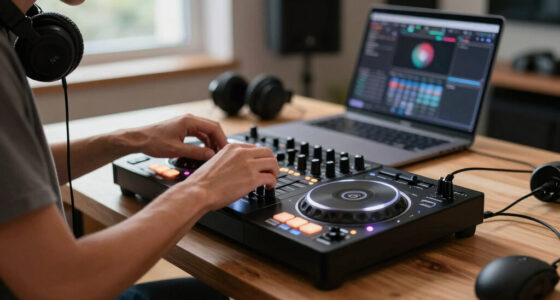
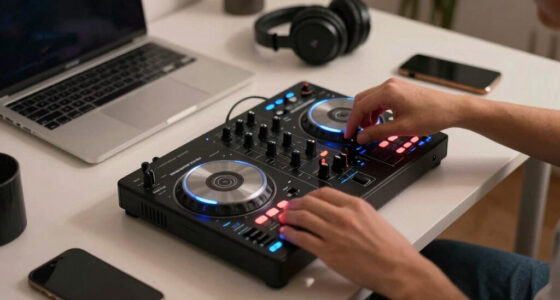
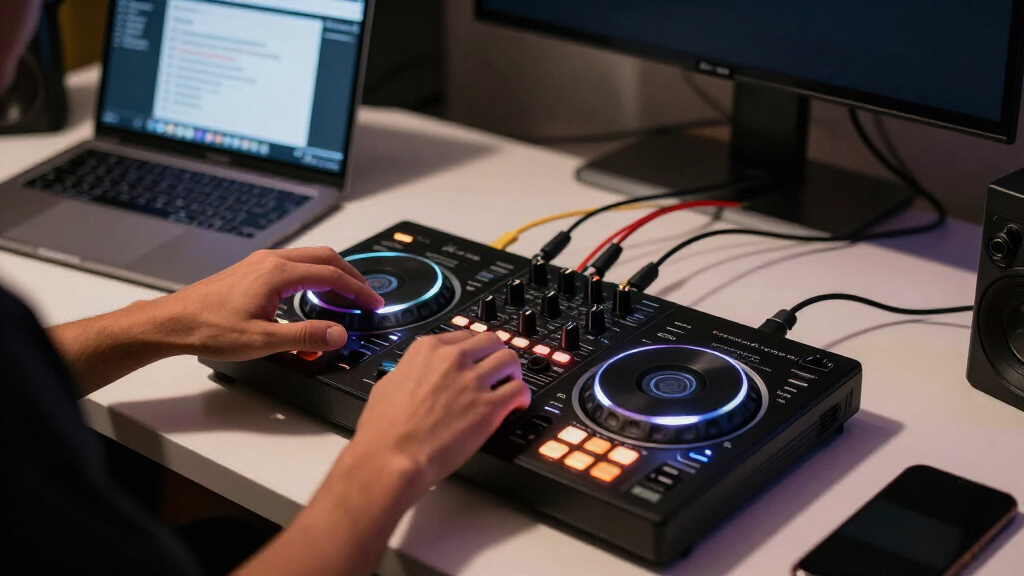
A typical rig: a Denon Prime 4, a USB-DMX interface, and SoundSwitch. The software reads the beat grid and your lights follow — if everything is patched correctly.
Choose the Right Bridge
USB-DMX interfaces like the ENTTEC DMX USB Pro are reliable staples. Ethernet Art-Net nodes suit larger rigs. Always use DMX-rated cable, not mic cable.
Set Up Your Sync Layer
Run SoundSwitch with Serato DJ Pro or Engine DJ — or Pioneer’s Rekordbox Lighting with the RB-DMX1. Map your controller’s MIDI/HID signals to lighting commands.
Patch Fixtures Correctly
Load fixture profiles matching their exact DMX channel mode — a 7-channel moving head behaves differently in 12-channel mode. Verify every fixture before showtime.
Common Methods to Connect DJ & Lighting Gear
Native integration offers the most precise synchronization; bridging trades simplicity for flexibility; audio-reactive sacrifices precision for universal compatibility.
| Method | How It Works | Pros | Cons |
|---|---|---|---|
| Native SoftwareSoundSwitch · Rekordbox | Uses track data — beat grids and metadata — to drive lighting cues in sync with music structure. | ✓ Most accurate sync ✓ Follows phrases & structure |
✗ Limited to supported ecosystems ~ Needs analyzed tracks |
| Protocol BridgingBeat Link Trigger · OSC | Translates MIDI / OSC / Pro DJ Link signals into DMX or Art-Net for the lighting rig. | ✓ Flexible across gear ✓ Open-source options |
✗ Complex setup ~ Potential latency issues |
| Audio-ReactiveQLC+ · Lightjams | Lighting software beat-detects from the audio output in real time. | ✓ Works with any setup ✓ Simple to implement |
✗ Least precise ✗ Lags or misfires in noisy venues |
Relative Sync Precision by Method
Grid-based systems align cues to the music’s actual structure; audio-reactive systems estimate the beat on the fly. Indicative precision, based on real-world behavior under load.
▲ Indicative values — actual results depend on track analysis quality, clock stability & interface hardware
Gear That Keeps Your Signals Clean
Hardware directly impacts signal integrity. Unbuffered or low-quality interfaces introduce latency, dropouts, and flickering — often fine in rehearsal, failing at peak performance.
USB-DMX Interface
ENTTEC DMX USB Pro class devices — compact, buffered, compatible with most lighting software. Opto-isolated models protect your laptop from line faults.
Art-Net / sACN Node
Ethernet-based nodes (Art-Net, sACN E1.31) scale to larger rigs and enable wireless control — now standard even in mid-size setups.
DMX-Rated Cable
Never use mic cable — it isn’t built for digital signal and causes flickering and dropped data. Use proper DMX-rated cable end to end.
120 Ω Terminator
End every run with a 120 Ω terminator to prevent signal reflections — especially critical on long cable runs.
The Pitfalls That Break Compatibility
Most compatibility issues stem from incorrect fixture profiles or unbuffered interfaces under load — not the controllers themselves.
Wrong Fixture Profile
A moving head in 7-channel mode responds differently than in 12-channel mode. Wrong profile = lights answering the wrong channels — the #1 real-world complaint.
Verify Before the Gig
Double-check each fixture’s DMX personality in your lighting software and confirm its physical channel mode matches the patch.
Unbuffered Dongles Under Load
Cheap USB interfaces and open-source drivers flicker or delay under CPU load. One DJ’s flickering rig was fixed entirely by the correct profile plus a pro-grade interface.
Lock One Master Clock
Conflicting MIDI or Link sessions push lights off-beat. Use your DJ software’s BPM or Link session as the single clock source — and keep wireless DMX clear of RF-crowded environments.
From Jog Wheel to Light Beam
Five Rules for a Rock-Solid Light Show
Match fixture profiles to their DMX channel mode — always — to prevent misfiring fixtures.
A reliable USB-DMX interface is the backbone of a stable setup. Avoid unbuffered dongles under load.
Native solutions (SoundSwitch, Rekordbox Lighting) give the tightest sync; protocol bridging gives greater flexibility.
Keep one consistent clock source — Link or BPM from your DJ software — to avoid drift mid-show.
Wireless DMX works, but avoid RF-heavy environments — clubs full of phones are a documented interference risk.
What Does Compatibility Between DJ and Lighting Controllers Actually Mean?
Compatibility isn’t just about plugging in. It’s about how your DJ controller outputs data and how your lighting gear interprets it. DJ controllers typically send audio, MIDI, HID, or proprietary signals. Lighting fixtures run on DMX512, a standard that uses 512 channels per universe over RS-485 wiring.
You can’t connect them directly. Instead, a bridge—hardware or software—is needed to translate signals. For instance, a Pioneer DDJ-1000 outputs MIDI and HID but needs a DMX interface and software to control lights.
Think of it like translating languages; your controller speaks MIDI, your lights understand DMX. Bridging these languages is the core of compatibility.
Why does this matter? Because mismatched signals mean your lights may not respond correctly, or at all. For example, sending MIDI signals directly to DMX fixtures without proper translation can result in erratic behavior or no response, undermining the visual impact of your set. Choosing compatible hardware and understanding these protocols ensures your light show complements your music perfectly, creating an immersive experience for your audience.

SoundSwitch Micro DMX Interface
- Lighting Setup Simplified: USB to DMX XLR interface for SoundSwitch
- Portable Design: Ultra compact with LED indicator
- Custom Lighting Creation: Design or automate lighting scenes
As an affiliate, we earn on qualifying purchases.
As an affiliate, we earn on qualifying purchases.
How to Make Your DJ Controller Talk to Your Lights in 3 Clear Steps
- Choose the right bridge hardware: USB-DMX interfaces like ENTTEC DMX USB Pro are reliable. Ethernet nodes (Art-Net) are great for larger rigs. Make sure it’s DMX-rated, not mic cable.
- Set up your software: Use SoundSwitch with Serato DJ Pro or Engine DJ, or Pioneer’s Rekordbox Lighting mode with RB-DMX1. Map your controller’s MIDI or HID signals to lighting commands.
- Patch your fixtures correctly: Load fixture profiles matching their DMX mode—wrong profiles cause lights to respond erratically. Verify each fixture’s channel mode before running the show.
For example, a typical setup involves a Denon Prime 4, a USB-DMX interface, and SoundSwitch. When you play a track, the software reads the beat grid, and your lights follow perfectly—if everything is patched correctly.
Why does this process matter? Because each step is crucial for ensuring that the signals your controller outputs are accurately translated and delivered to your fixtures. A mismatch in profiles or an incompatible interface can lead to flickering, unresponsive lights, or timing drifts, which distract from your performance and diminish the audience’s experience. Proper setup minimizes these risks, ensuring your light show enhances the music, not hinders it.
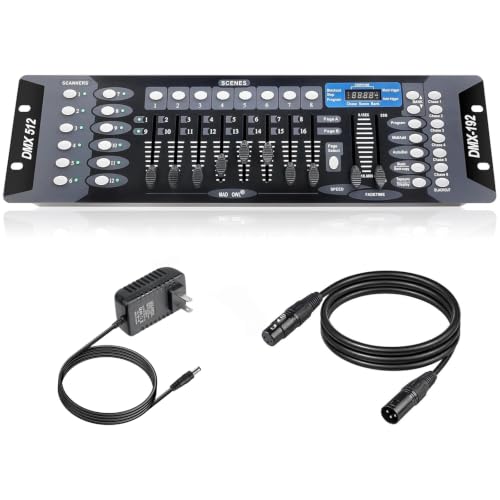
DMX Controller for dj Lights Dmx512 Light Controllers 192 Channel DMX Board with Cables 2m/6.6 ft Dmx-512 Lighting Console for Control Stage Light
- Versatile DMX512 Control: 192 channels for stage and DJ lighting
- Extensive Scene Storage: 23 banks of 8 programmable scenes
- Multiple Scene Editing: Edit 240 step scenes in 6 chases
As an affiliate, we earn on qualifying purchases.
As an affiliate, we earn on qualifying purchases.
Compare Common Methods to Connect DJ and Lighting Gear
| Method | How It Works | Pros | Cons |
|---|---|---|---|
| Native Software Integration | Uses track data (beat grids, metadata) for syncing lights. Examples: SoundSwitch, Rekordbox Lighting. | Most accurate, synchronized to music structure. | Limited to supported software and hardware ecosystems. |
| Protocol Bridging | Translates MIDI/OSC/Pro DJ Link signals into DMX or Art-Net. Uses open-source tools like Beat Link Trigger. | Flexible, works across multiple controllers and fixtures. | Complex setup, potential latency issues. |
| Audio-reactive Lighting | Lighting software reacts to audio output, beat-detecting in real time. | Works with any setup, simple to implement. | Less precise, can lag or misfire in noisy environments. |
Understanding these methods in depth reveals their implications. Native software integration offers the most precise synchronization because it aligns the lighting cues directly with the music’s beat and structure, reducing timing errors. However, it often requires specific hardware and software ecosystems. Protocol bridging provides broader flexibility, allowing you to connect various controllers and fixtures, but it may introduce latency that affects real-time responsiveness. Audio-reactive lighting is the simplest to implement but sacrifices precision, which can be noticeable during complex or fast-paced performances. Recognizing these tradeoffs helps you choose the best approach for your setup and performance style, balancing ease of use against synchronization fidelity.

MIDI to DMX Converter Box, USB-C Interface Compact MIDI DMX Adapter, Plug & Play DMX512 Lighting Controller for Stage Party DJ Studio
- MIDI to DMX conversion: Converts MIDI signals for lighting control
- Compatible with MIDI software: Works seamlessly with MIDI software
- Standard DMX output: Sends DMX signals to lighting fixtures
As an affiliate, we earn on qualifying purchases.
As an affiliate, we earn on qualifying purchases.
Hardware Gear That Ensures Your Lights Play Nice with Your Controller
Getting DMX out of your laptop or controller relies on specific hardware. A USB-DMX interface like the ENTTEC DMX USB Pro is a staple—compact, reliable, and compatible with most lighting software. Ethernet-based options, such as Art-Net nodes, enable larger setups or wireless control.
Always choose DMX-rated cables. Don’t use mic cables—they’re not designed for digital signals and can cause flickering or dropped data. End your run with a 120 Ω terminator to prevent signal reflections, especially on long runs.
Why does this matter? Because your hardware setup directly impacts signal integrity. Using unbuffered or low-quality interfaces can introduce latency, dropouts, or flickering, especially under load or with many fixtures. Proper hardware ensures your signals are clean, stable, and responsive, which is critical for maintaining the professional look and feel of your show. For example, a poorly chosen interface might work during rehearsals but fail during the peak of your performance, causing embarrassing glitches. Investing in quality gear means fewer surprises and a more consistent, polished show.

Donner Wireless DMX 8PCS Black Metal DMX512 wireless Dfi DJ 2.4G 7 Receivers & 1 Transmitter Lighting Control for LED Stage Disco Party Bar Lighting
- Application: Stage lighting control with wireless DMX512
- Wireless Network: 7 ID code groups for interference-free use
- High Efficiency: 126 channels, 500M range, no delay
As an affiliate, we earn on qualifying purchases.
As an affiliate, we earn on qualifying purchases.
Fixing the Common Pitfalls That Break Compatibility
One of the biggest issues? Incorrect fixture profiles. A moving head set to 7 channels responds differently than one in 12-channel mode. Always double-check your fixture’s DMX profile in your lighting software before the gig.
Another snag: unbuffered interfaces under CPU load. Cheap dongles or open-source drivers can cause flickering or delays. Use buffered, professional-grade interfaces for rock-solid performance.
Wi-Fi interference or conflicting clock sources (like multiple MIDI or Link sessions) can send your lights off-beat. Lock your master clock—preferably your DJ software’s BPM or Link session—and keep wireless signals clear.
For example, a DJ running SoundSwitch with a cheap USB interface experienced flickering because the fixture profile was mismatched. Fixing the profile and upgrading the interface eliminated the flicker entirely. The deeper implication? Even small misconfigurations or low-quality hardware can cascade into noticeable performance issues, undermining the professionalism of your show. Understanding these pitfalls and addressing them proactively helps maintain visual harmony and ensures your lighting complements your music seamlessly.
What’s New in Lighting Compatibility for DJs?
Recent advances include native support for standalone hardware like Denon Prime series and Numark controllers—no laptop needed for basic lighting control. SoundSwitch now integrates directly into some Denon standalone players, allowing light shows from USB media.
Open-source tools like Beat Link Trigger have simplified bridging Pioneer Pro DJ Link with lighting protocols, making live sync easier. Wireless DMX systems have matured, but crowded RF environments still pose risks.
Apple Silicon (M1, M2) Macs are now more compatible with lighting software and USB-DMX drivers—an ongoing update that pro DJs need to watch for.
Why do these developments matter? Because they expand the possibilities for live performance, reduce setup complexity, and improve reliability. For example, native support in standalone hardware means fewer devices and less setup time, reducing points of failure. However, each new technology also introduces potential compatibility issues or learning curves. Staying updated ensures you leverage these advancements effectively, maintaining a professional, seamless show that adapts to evolving technology trends.
Quick Checklist: Making Sure Your Setup Plays Nice
- Use a compatible USB-DMX interface (ENTTEC, Chauvet, etc.).
- Patch fixtures with correct profiles matching their DMX mode.
- Choose software that supports your hardware (SoundSwitch, Rekordbox, etc.).
- Map your controller’s MIDI/HID signals properly.
- Verify your master clock source—use Link, BPM, or Pro DJ Link.
- Keep cables tidy, terminated, and free from RF interference.
Frequently Asked Questions
Can I plug my DDJ controller directly into my lights?
No. DJ controllers output audio, MIDI, or HID signals, but lights run on DMX512. You need a hardware or software bridge—like a USB-DMX interface and lighting software—to connect them properly.
Does SoundSwitch work with Traktor or VirtualDJ?
SoundSwitch natively supports Serato DJ Pro and Engine DJ, but not Traktor or VirtualDJ. For those, you need protocol bridging or audio-reactive setups. Check current support lists, as they change frequently.
What hardware do I need to get DMX out of my laptop?
A USB-DMX interface like the ENTTEC DMX USB Pro or an Ethernet node for Art-Net. Never use mic cables—only DMX-rated cables—and terminate the last fixture with a 120 Ω resistor for stability.
How do I make my lights follow the BPM automatically?
You can use beat grids analyzed in your DJ software, sync via Link or Pro DJ Link, or rely on audio-reactive lighting software. Each method has trade-offs—accuracy vs. complexity.
Can I run both DJ and lighting software on the same laptop?
Yes, but ensure your machine has enough CPU and RAM. For professional reliability, some prefer a second dedicated machine for lighting control, especially in large or complex setups.
Conclusion
Getting your DJ and lighting gear to work together isn’t magic—just good setup and understanding the hardware and protocols. When you patch correctly, patch often, and keep your gear updated, your lights will dance perfectly in time with your beats.
Think of it as tuning a musical instrument—once everything’s set, the show runs smooth. Your audience will feel the groove, and you’ll enjoy the control.