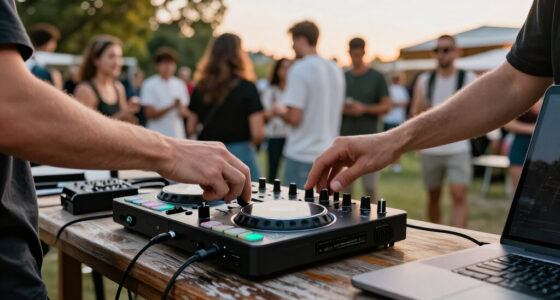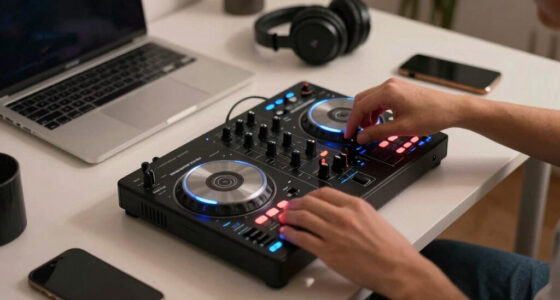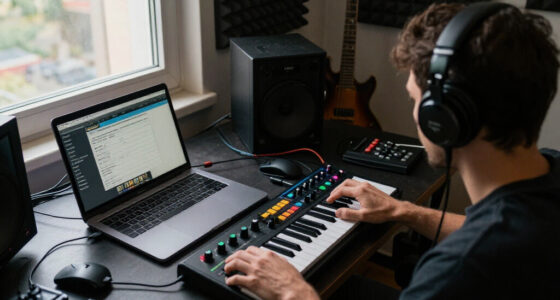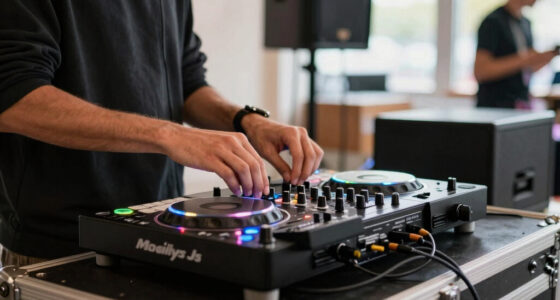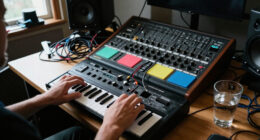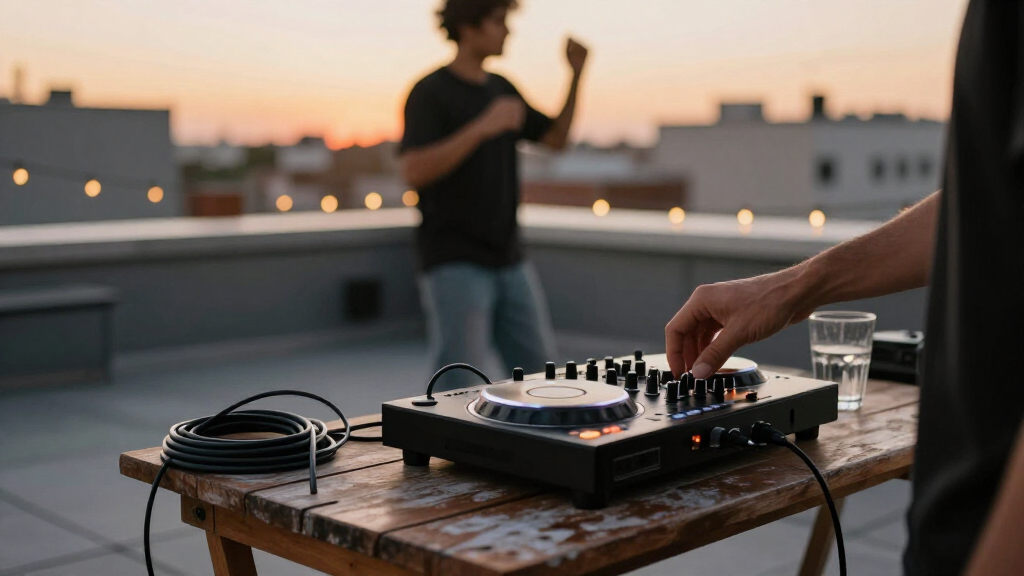
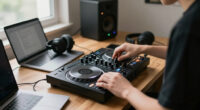
Set up a compact DJ controller, connect it to your computer and speakers or headphones, configure compatible DJ software, and test the controls before playing a set. This guide is for beginners preparing a home practice setup or a small portable rig. Allow 30-60 minutes, including software setup and sound checks; the exact time depends on your controller and computer.

Get audio and creator gear delivered free with Prime
- Fast, free delivery on millions of items
- Prime Video, Amazon Music and more included
- Member-only deals all year
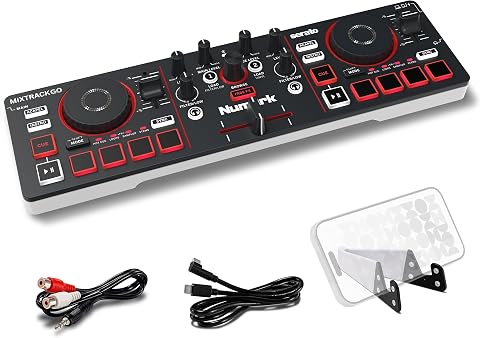
Numark MixTrack Go Compact Bluetooth DJ Controller with Stems Control
- ✔ Decks: 2
- ✔ Connectivity: Bluetooth MIDI; USB-C
- ✔ Jog wheels: 2 capacitive touch

Hercules DJControl Inpulse 200 MK3 2-Channel DJ Controller
- ✔ Channels: 2
- ✔ Decks: 2
- ✔ Jog wheels: 2

Hercules DJControl Starlight Compact DJ Controller
- ✔ Channels: 2
- ✔ Connectivity: USB
- ✔ Power source: Battery powered
Difficulty: Beginner | Time: 30-60 minutes
What You’ll Need
Tools & Materials:
- Compact DJ controller and its USB cable or power supply
- Computer that meets the controller and DJ software requirements
- Compatible DJ software and any required license or account
- Headphones with the connector type supported by the controller
- Powered speakers, an amplifier and speakers, or another suitable audio system
- Audio cables that match the controller outputs and speaker inputs
- Music files you have permission to use
Knowledge:
- Basic computer use, including installing software and selecting audio devices
- Ability to identify USB, headphone, and audio connections
- No prior DJ experience required
Check the controller maker’s setup instructions and the DJ software’s compatibility list before connecting anything. Some controllers draw power over USB; others need a separate supply. A controller’s USB connection to a computer does not always carry the main speaker output, so plan to connect speakers to the controller’s audio outputs or use the software’s supported audio configuration.
Numark MixTrack Go Compact Bluetooth DJ Controller with Stems Control
The Numark MixTrack Go earns our top spot by combining portable power options with hands-on creative controls. Its two capacitive jog wheels, eight performance pads per deck, and dedicated stems controls make it more than a stripped-down travel controller: we can cue, mix, and work with track elements without relying entirely on a laptop interface. That makes it a particularly adaptable pick for casual sets and compact home practice.Its strongest distinction from the Hercules models is the choice of software and device workflow. It includes access to Serato DJ Lite and Algoriddim djay, and Bluetooth MIDI can link it to compatible iOS or Android devices running djay. USB-C power also opens up power-bank use, which supports a genuinely portable setup. But we should read the wireless claim carefully: Bluetooth MIDI depends on compatible hardware and the specified app, while USB-C is the power connection, not a promise of wireless audio.The main compromise is the pair of 1/8-inch audio outputs for master and headphones. They are useful for compact rigs, and an RCA adapter is included, but buyers with equipment built around other connector formats should check their cable plan before purchasing. Compared with the Inpulse 200 MK3, the MixTrack Go favors flexible device use and direct stems controls over guided learning. Compared with the lighter-specified Starlight, it offers a broader listed feature set, but asks us to be comfortable with app and connection dependencies. Choose it for portability with creative room; skip it if you need a conventional, connection-first setup or step-by-step beginner coaching.
Pros:
- USB-C power supports portable use, including with a power bank.
- Bluetooth MIDI offers a mobile workflow with compatible devices and Algoriddim djay.
- Dedicated stems, mixing, and track-cueing controls add hands-on creative options.
- Includes access to Serato DJ Lite and Algoriddim djay.
Cons:
- Bluetooth MIDI depends on compatible devices and the Algoriddim djay app.
- Both the master and headphone outputs use 1/8-inch connectors.
- The two-deck layout does not provide expanded channel capacity.
Best for: Mobile-minded DJs who want stems controls, USB-C power, and a choice of supported DJ software for a compact two-deck setup.
Not ideal for: Buyers who need full-size audio connections, guaranteed device-agnostic wireless operation, or built-in beatmatching lessons.
Bottom line: For the broadest blend of portable power, software choice, and stems control, we would start with the MixTrack Go, provided its compact output connections suit our setup.
“For the broadest blend of portable power, software choice, and stems control, we would start with the MixTrack Go, provided its compact output connections suit our setup.”
Hercules DJControl Inpulse 200 MK3 2-Channel DJ Controller
For someone learning to beatmatch, the Hercules DJControl Inpulse 200 MK3 makes the most sense. Its Beatmatch Guide LEDs provide timing cues at the controller, while DJ Academy tutorials offer an additional learning path. Those features give it a different purpose from the MixTrack Go: rather than leading with mobile flexibility and dedicated stems controls, the Inpulse 200 MK3 puts skill-building and approachable mixing at the center.Its compact two-deck layout includes jog wheels, four pads per deck, and pad modes for Hot Cue, Stems, FX, and Sampler. That is a useful spread for learning transitions and trying basic creative techniques without needing a larger surface. Master speaker and headphone monitoring outputs also make the essential listening workflow clear. Stem separation and support for streaming music services broaden what a beginner can explore, although the exact experience depends on the included software and service compatibility.The tradeoff is a firm two-channel limit, shared by the other options here, so it is not a stepping stone to a more elaborate multi-channel mix on the same hardware. Compared with the MixTrack Go, it offers stronger built-in learning cues but fewer listed performance pads per deck and no stated Bluetooth MIDI workflow. Compared with the Starlight, it is the more instructive choice, while the Starlight’s listed 1.1-pound weight makes its portability case more specific. We recommend this model for new DJs who value coaching over wireless flexibility; experienced users seeking a more open-ended control surface may prefer the Numark.
Pros:
- Beatmatch Guide LEDs support timing practice.
- DJ Academy tutorials add structured beginner guidance.
- Four pads per deck support Hot Cue, Stems, FX, and Sampler modes.
- Master speaker and headphone monitoring outputs support a practical basic setup.
Cons:
- Limited to two-channel mixing.
- Its beginner-focused guidance may be less valuable to experienced DJs.
- The listed setup is USB-based rather than a stated Bluetooth MIDI workflow.
Best for: New DJs who want beatmatching cues, tutorials, and a compact controller with useful pad modes for learning transitions and basic remixing.
Not ideal for: Experienced mixers who need more than two channels, or buyers who prioritize Bluetooth MIDI and mobile-device flexibility.
Bottom line: We recommend the Inpulse 200 MK3 for first-time DJs who want visible beatmatching help and tutorials more than mobile connectivity or a larger pad count.
“We recommend the Inpulse 200 MK3 for first-time DJs who want visible beatmatching help and tutorials more than mobile connectivity or a larger pad count.”
Hercules DJControl Starlight Compact DJ Controller
The Hercules DJControl Starlight is the straightforward choice when we want a compact controller for mixing on the go without prioritizing a long feature list. At a stated 1.1 pounds, it is the lightest option in this comparison with a specified weight. Its USB connection, Serato DJ Lite support, essential mixing controls, and pressure-sensitive jog wheels make the basic use case easy to understand: bring a small controller, connect it, and practice or mix with a compatible computer setup.A useful advantage over the MixTrack Go is its built-in sound card, which supports headphone cueing and speaker output. That makes the listening workflow more self-contained, while the listed RCA output provides a different connection option from the MixTrack Go’s 1/8-inch outputs. RGB and strobe lighting that can sync with music also add visual character. These lights are a bonus rather than a reason to choose it over a controller with more directly useful creative or learning controls.The Starlight is deliberately limited: it has two channels, and its software is listed as Serato DJ Lite rather than the two software options named for the Numark. Software update support is also listed as unknown, so we should not assume a particular long-term update path. Compared with the Inpulse 200 MK3, it emphasizes low stated weight and a simple travel workflow rather than Beatmatch Guide LEDs and tutorials. Choose it if ease of transport and built-in cueing matter most; skip it if you want the richer stems-control workflow of the MixTrack Go or more explicit beginner instruction.
Pros:
- Specified weight of 1.1 pounds supports a light travel kit.
- Built-in sound card supports headphone cueing and speaker output.
- RCA output offers a different connection format from the MixTrack Go.
- Pressure-sensitive jog wheels and music-synced lighting suit a simple portable setup.
Cons:
- Limited to two channels.
- Software update support is listed as unknown.
- Its listed feature set is less focused on learning guidance than the Inpulse 200 MK3.
Best for: Traveling beginners or casual mixers who want a lightweight controller with a built-in sound card and a simple Serato DJ Lite setup.
Not ideal for: Buyers who want built-in beatmatching tutorials, broad software flexibility, or more than two-channel mixing.
Bottom line: The Starlight is our compact travel pick for buyers who value a lightweight, focused Serato setup and built-in cueing over broader creative or teaching features.
“The Starlight is our compact travel pick for buyers who value a lightweight, focused Serato setup and built-in cueing over broader creative or teaching features.”
As an Amazon Associate we earn from qualifying purchases.
Before You Start
Place the controller on a stable, level surface with room for the computer, headphones, and cables. Turn speaker and headphone levels down before making connections. Keep speakers off while connecting audio cables to reduce pops. Download drivers and software only from the controller manufacturer or software publisher. Avoid installing updates immediately before a live performance; first test updates at home.
Step-by-Step Instructions
Step 1: Check compatibility and gather the right cables
Find the controller’s model name and check its manual for supported operating systems, DJ software, power needs, and audio outputs. Confirm that your computer meets the software requirements and has an available USB port or the correct adapter. Match the controller’s outputs—such as RCA or balanced 1/4-inch jacks—to your speakers or amplifier inputs. Get the correct cable rather than forcing an ill-fitting connector.
Tip:If you use a USB hub, choose a powered hub only if the controller maker permits it. A direct computer connection is the simplest way to diagnose power or connection problems.
Check: You have a compatible computer and software, a way to power the controller, and cables that fit both ends of the audio connection.
Step 2: Install the DJ software and required driver
Download the recommended DJ application and any required controller driver from their official sources. Close other audio applications, run the installers, and follow the prompts. Restart the computer if requested. Open the software once before connecting the controller if the installer or manual instructs you to do so.
Tip:Do not assume that every controller works with every DJ application. Some features may require a specific software version, license, or driver.
Check: The software opens without an installation error, and any required driver appears installed according to the maker’s setup instructions.
Step 3: Place and connect the controller
Set the controller beside the computer so you can reach the controls without pulling on the cables. With the controller and speakers off or turned down, connect the controller to the computer using the supplied USB cable. Connect its power supply if the manual requires one. Connect the controller’s master output to the speaker system or amplifier using the cable type you selected. Plug headphones into the controller’s headphone jack.
Tip:Route cables so they cannot snag on a chair, foot, or bag. Do not connect a line-level controller output to a microphone input unless the audio equipment instructions specifically allow it.
Check: The USB and audio plugs sit firmly in their sockets, the controller powers on, and no cable is under tension.
Step 4: Start the software and select the controller
Turn on the computer and controller, then open the DJ software. Open its audio or device settings and select the compact controller as the control device. Choose the controller or its supported audio driver for audio output when available. If the software lists separate master and headphone outputs, assign the master output to the speaker connection and the headphone output to the controller’s headphone jack. Apply the settings.
Tip:Audio settings vary by application and operating system. Use the controller manual’s recommended configuration instead of guessing at channel numbers.
Check: The software recognizes the controller, and its audio settings show usable master and headphone outputs rather than a missing-device warning.
Step 5: Add music and prepare two tracks
Import a few music files you own or are licensed to use into the software library. Let the application analyze the tracks if it offers beat-grid or tempo analysis. Load one track on each deck, check that both waveforms appear, and confirm that the files play in the software. Keep the first test simple; use familiar tracks with clear, steady rhythm.
Tip:Streaming tracks may have different availability or offline rules from local files. For practice without a reliable internet connection, test with files stored on your computer.
Check: Both decks display loaded tracks, and the software can play each file without an error or missing-file message.
Step 6: Set safe levels and test the audio path
Keep the master output and speaker volume low. Start one deck, raise its channel level gradually, then raise the master level until you hear clean audio from the speakers. Stop playback. Put on headphones and use the controller’s cue or monitor controls to listen to the other deck without sending it to the speakers. Test each deck separately before trying to play both.
Tip:Do not turn up the volume to compensate for a wrong output assignment. Confirm the selected device and output routing first; excessive level can damage hearing or speakers.
Check: You can hear the selected deck from the speakers, and you can cue the other deck in headphones at a comfortable level without crackling or distortion.
Step 7: Test the main controls and make a short mix
With the speakers quiet, move each channel fader and the crossfader, turn the EQ and filter controls, and test play, pause, cue, and jog-wheel response on both decks. Check that the software’s on-screen controls respond to your movements. Then play a short section from one deck, cue the second in headphones, and bring it in gradually with the crossfader or channel faders. Stop playback before changing cables or audio settings.
Tip:Some buttons have alternate functions or require a software mode. If a control does not respond, check the controller’s mapping and manual before assuming the hardware is faulty.
Check: The physical controls match the software response, each deck can play, and you can hear a controlled change between the two tracks.
Step 8: Save settings and pack the setup safely
Save or confirm the software’s device and audio preferences. Record the output settings if you may need to recreate them. Stop playback, lower the speaker level, and turn off the speakers before shutting down the controller and computer. Disconnect cables by holding their plugs, not pulling the cords. Store the controller and cables in a padded case or dry, protected place.
Tip:Before taking the setup to another location, repeat the audio and control checks there. Different speakers, adapters, or computer ports can change the routing.
Check: Your settings remain available after reopening the software, and the controller, cables, and power supply are stored without damage or strain.
Common Mistakes to Avoid
- Testing only the speakers and not headphone cueing or both decks. — Test each deck, the master output, and headphone monitoring separately before practicing a mix.
Troubleshooting
Problem: Audio crackles, cuts out, or feels delayed.
Solution:
Connect the controller directly to the computer, close applications using audio, and check that the correct driver and sample-rate settings are selected. Increase the audio buffer slightly if the software offers that control; a larger buffer can reduce crackling but may add response delay. Retest before changing additional settings.
What Success Looks Like
The setup is ready when the DJ software recognizes the controller, two tracks load and play, the master output produces clean sound, headphone cueing works, and the main deck controls respond as expected. You should be able to bring in a second track and control the audible mix without unexpected distortion, missing audio, or software warnings.
Next Steps
Practice cueing and moving between tracks at a low volume before using the controller in front of others. Keep a copy of the software installer, license details, and setup notes in a secure place. Before each session, inspect cables, check the controller’s power, and test the master and headphone outputs. For a performance setup, test the complete system—including venue speakers and adapters—in advance, and carry a spare audio cable when practical.
Frequently Asked Questions
Should I update the software before a gig?
Avoid making an untested update immediately before a performance. Check compatibility and install updates when you have time to test the controller, audio routing, library, and settings afterward.
Halloween Picks
halloween
As an affiliate, we earn on qualifying purchases.