
TL;DR

Get audio and creator gear delivered free with Prime
- Fast, free delivery on millions of items
- Prime Video, Amazon Music and more included
- Member-only deals all year
Connection issues stem from outdated drivers, interference, or incompatible hardware. Updating firmware, checking settings, and testing on different devices can fix 80% of problems. Wireless is more prone to disconnection than wired, but modern tech has improved stability.
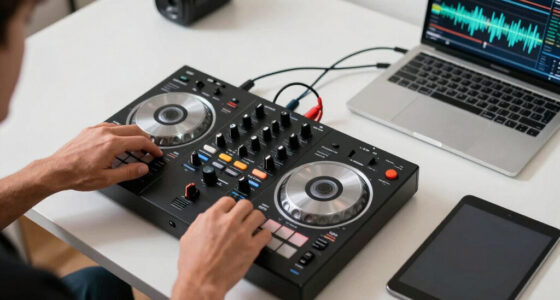
Ever plugged in your controller, only to find it’s dead silent or unresponsive? Frustrating, right? But most connection problems aren’t mysterious—they’re fixable with a few quick checks. Whether you’re battling lag during a DJ set or struggling to sync your gamepad, understanding the common pitfalls saves time and headache.
This guide walks you through the most frequent issues, from hardware glitches to software conflicts, with practical tips for both wired and wireless controllers. Ready to get your gear talking again? Let’s dive in.
Regularly update your controller’s firmware and drivers to prevent connection issues.
Wireless controllers are more vulnerable to interference; using wired connections can improve stability during critical gigs.
Check your device’s Bluetooth and input settings if the controller isn’t recognized or responding.
Run built-in troubleshooting tools before trying complex fixes—these save time and often solve problems automatically.
Testing the controller on different devices helps pinpoint whether the issue is hardware or software-related.
Identify Your Controller and Connection Method—Know What You’re Dealing With
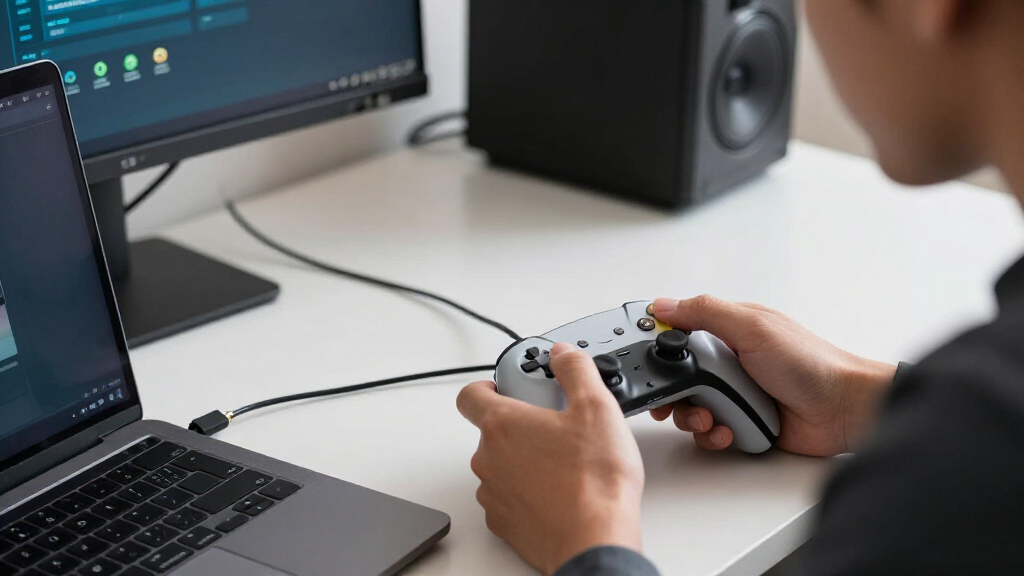
The first step? Know exactly what kind of controller you’re using and how it connects. Wired controllers like the Logitech F710 connect via USB, while wireless options like the XBox Series X controller use Bluetooth or proprietary wireless protocols.
Understanding your connection type is crucial because each has different troubleshooting needs. Wired controllers are generally straightforward—plug and play—so issues often relate to physical connection or driver problems. Wireless controllers, however, rely on radio signals that can be affected by distance, interference, or pairing issues. Recognizing which type you’re dealing with helps you target the right fixes, saving time and avoiding unnecessary steps.
Check if your controller is wired or wireless. If wireless, note whether it uses Bluetooth or a dedicated wireless protocol. This impacts how you troubleshoot and what tools you might need.
Popular right now

Bose QuietComfort Wireless Noise-Cancelling Headphones, Petal Pink

KitchenAid Classic Series 4.5-Quart Tilt-Head Stand Mixer, Onyx Black

Philips 2200 Series Fully Automatic Espresso Machine with Classic Milk Frother
As an affiliate, we earn on qualifying purchases.
Check Hardware Compatibility and Power—Avoid the Obvious Pitfalls
Before diving into complex settings, confirm that your hardware is compatible with your device’s operating system and software. Compatibility issues can cause intermittent disconnections or total failure, which can be frustrating to diagnose. For example, an Xbox One controller works seamlessly with Windows 10, but older models might require specific drivers or firmware updates to function correctly. Failing to verify compatibility can lead to wasted troubleshooting time, as the root cause is hardware or software incompatibility rather than a connection fault.
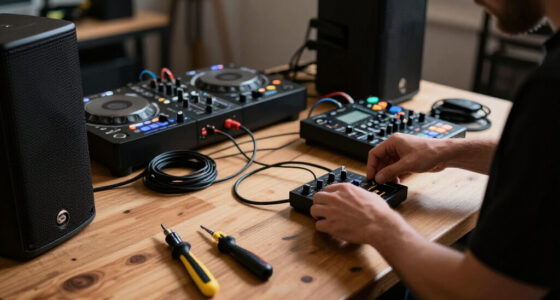
Power supply is equally important. A controller with low batteries or a loose cable can cause inconsistent signals, resulting in lag or disconnections. This isn’t just about convenience; it impacts your workflow or gaming experience. For DJs, a sudden disconnection during a live set can ruin the moment, so ensuring stable power and connections is essential.
Tip: Always check your controller’s manual or manufacturer’s website for compatibility info and power requirements. Investing in quality cables or batteries can prevent many issues before they start.
Update Drivers and Firmware—Keep Your Gear in Top Shape
Outdated drivers or firmware are silent killers of connection stability because they can contain bugs, security vulnerabilities, or incompatibility issues that cause disconnections or lag. Manufacturers regularly release updates to address these problems, often improving hardware performance and adding new features. Not keeping your gear updated means missing out on these enhancements and risking instability, especially as systems and peripherals evolve.
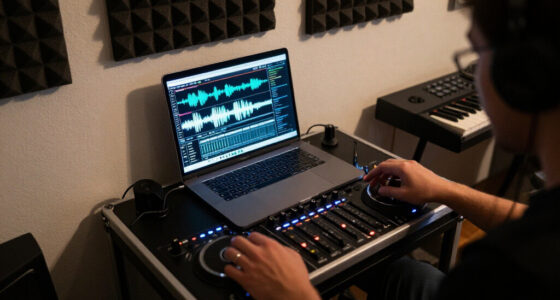
For instance, a DJ’s wireless controller might disconnect unexpectedly during a performance if its firmware is outdated. Updating it via the manufacturer’s app or website ensures you have the latest fixes and improvements, which can resolve known bugs that cause disconnections. This process is often simple but critical—failing to do so can mean persistent issues that seem random but are actually due to software bugs.
Pro tip: Enable automatic updates where possible, and periodically check for firmware patches. This proactive approach minimizes downtime and ensures your gear operates at peak reliability, especially during important gigs or gaming sessions.
Verify Connection Settings—Make Sure Your Device Is Listening
Connection issues often stem from incorrect or incomplete settings. For Bluetooth, ensure your controller is paired and recognized as an input device. On Windows, navigate to Settings > Devices > Bluetooth & other devices to verify that your controller appears as connected. If it’s not recognized correctly, the system may not send input signals, making your controller appear unresponsive.
For wireless protocols like Xbox Wireless, confirm the controller is paired via the Xbox Accessories app or system settings. Sometimes, devices show as connected but don’t respond because the input device isn’t selected or configured properly in your software or device settings. This mismatch can cause delays or unresponsiveness, which might seem like hardware failure but is actually a configuration issue.
Tip: Remove and re-pair Bluetooth devices if issues persist. A fresh pairing can resolve hidden glitches caused by corrupted profiles or interference, restoring proper communication between your controller and host device.
Understanding how your connection settings influence data flow is key. Properly configured, your controller’s signals will transmit reliably; misconfigured settings can introduce latency or disconnects that are frustrating but fixable.
Troubleshoot Common Connection Problems—Pinpoint the Issue
Connection problems can manifest in various ways, and understanding the underlying cause helps you choose the right fix. For example, a controller not recognized at all usually points to driver issues, incompatible firmware, or faulty ports. Laggy or unresponsive controls often result from interference, low batteries, or system overload. Random disconnects may be caused by weak signals, firmware bugs, or wireless congestion. Recognizing these patterns is vital because each has different solutions, and misdiagnosing can prolong the problem.
For instance, if your Bluetooth controller disconnects during a gig, moving closer to the receiver can reduce interference, but persistent issues may require firmware updates or switching to a wired connection. Each problem type has tradeoffs: wired connections are stable but less flexible, while wireless offers mobility at the cost of potential interference.
Knowing these common patterns helps you troubleshoot more efficiently. Instead of random trial-and-error, you can target the root cause—whether it’s updating firmware, changing batteries, or reducing wireless congestion—saving time and minimizing disruptions.
Use Built-in Troubleshooting Tools—Let Tech Help You
Most operating systems have built-in tools designed to diagnose hardware issues, which can save you hours of frustration. On Windows, running the ‘Hardware and Devices Troubleshooter’ prompts the system to scan for problems, check driver integrity, and suggest fixes. These tools analyze common issues like driver conflicts or hardware malfunctions, providing targeted solutions that might be overlooked manually.
Console systems like Xbox or PlayStation also have diagnostic menus and tools. For example, Xbox’s ‘Device & Accessories’ app can automatically detect connection issues, update firmware, and even test controller responsiveness—all within a few clicks. These built-in diagnostics leverage system-level insights, making troubleshooting more efficient and less guesswork.
For instance, a DJ’s controller that’s not recognized after a system update might be fixed by running these tools or resetting device settings. These utilities are designed to identify problems quickly, often resolving issues that seem complex or obscure.
Tip: Keep your system software and firmware up to date to ensure you have the latest troubleshooting features and compatibility improvements, reducing downtime during critical moments.
Understanding how these tools work and utilizing them regularly makes troubleshooting more systematic and less stressful, especially during live performances or important gaming sessions.
Reset or Re-pair the Controller—Start Fresh
If all else fails, resetting your controller or re-pairing it often clears persistent glitches caused by corrupted profiles or temporary software conflicts. For wireless controllers, turning off the device and following the manufacturer’s reset instructions can restore factory settings, which often resolves stubborn connection issues. Re-pairing the device ensures a clean, fresh connection, eliminating potential mismatches or corrupted pairing data.
For example, a wireless DJ controller might experience more stable operation after a reset. Re-pairing via Bluetooth or the controller’s dedicated app often fixes intermittent disconnections caused by software glitches or interference. This step is especially effective when other troubleshooting attempts have failed because it resets the communication state entirely, allowing a fresh start.
Pro tip: Always remove the device from your system’s Bluetooth list before re-pairing. This clears any corrupt or outdated profiles that might be causing issues, ensuring a clean slate for establishing a new connection.
Remember: Always back up your controller settings if possible before resetting, to avoid losing custom configurations or mappings.
This step isn’t just about fixing problems; it’s about giving your controller a clean slate, which can be surprisingly effective for resolving stubborn issues.
Test on Different Devices—Find the Real Culprit
Testing your controller across multiple devices is a crucial step in diagnosing whether the problem lies with the controller itself or your host device. If the controller works flawlessly on one device but not another, it indicates the issue is likely software-related, such as driver conflicts or system settings. Conversely, if the problem persists across multiple devices, the hardware may be faulty.
For example, a Bluetooth controller functioning well on a laptop but failing on a tablet suggests the problem may be with the tablet’s Bluetooth drivers or system configuration. On the other hand, if the controller exhibits issues on all tested devices, it might be defective or have hardware faults that need repair or replacement.
Tip: Keep a record of your tests, noting which devices work and which don’t. Over time, this helps identify patterns and isolates the root cause more efficiently.
Remember: Consistent issues across all devices point to hardware failure, while isolated problems often relate to software conflicts or settings. This knowledge guides your next steps—whether it’s updating drivers, adjusting settings, or replacing hardware.
Frequently Asked Questions
Why isn’t my Bluetooth controller connecting to my PC?
Start by checking if your controller is in pairing mode. Make sure Bluetooth is enabled on your PC, and remove any old pairings. Also, ensure your PC’s Bluetooth drivers are up to date. Sometimes, restarting both devices helps reset the connection.How do I fix lag or input delay with my wireless controller?
Reduce wireless interference by moving closer to your receiver, turn off other Bluetooth devices nearby, and replace batteries with fresh ones. If possible, switch to a wired connection for the lowest latency.What’s the best way to re-pair a controller that keeps disconnecting?
Remove the controller from your device’s Bluetooth list, turn it off, then follow the pairing process again. Resetting firmware via manufacturer tools can also help. Testing on another device confirms if the problem persists.Can I improve Bluetooth connection stability for my controller?
Yes. Keep your device’s Bluetooth drivers updated, minimize obstacles between controller and receiver, and use the latest Bluetooth version supported by your gear (preferably Bluetooth 5.0 or newer).How often should I update my controller’s firmware?
Check for updates every few months or after major software system updates. Firmware updates fix bugs and improve connection stability, especially for newer wireless protocols.Conclusion
Most controller connection issues come down to simple checks—software updates, compatibility, and settings. When you understand these common pitfalls, fixing problems becomes faster and less stressful.
Next time your controller acts up, remember: a quick reset, update, or test on another device could be all it takes to get back to smooth control. Keep your gear sharp, and your gigs will stay flawless.